

How do I Invite Additional Coaches to My Roster?

Follow the steps below to invite additional coaches to join your roster.
*Coach invites can only be done online at Sportsthread.com and cannot be sent through the Sports Thread app*
Step 1:
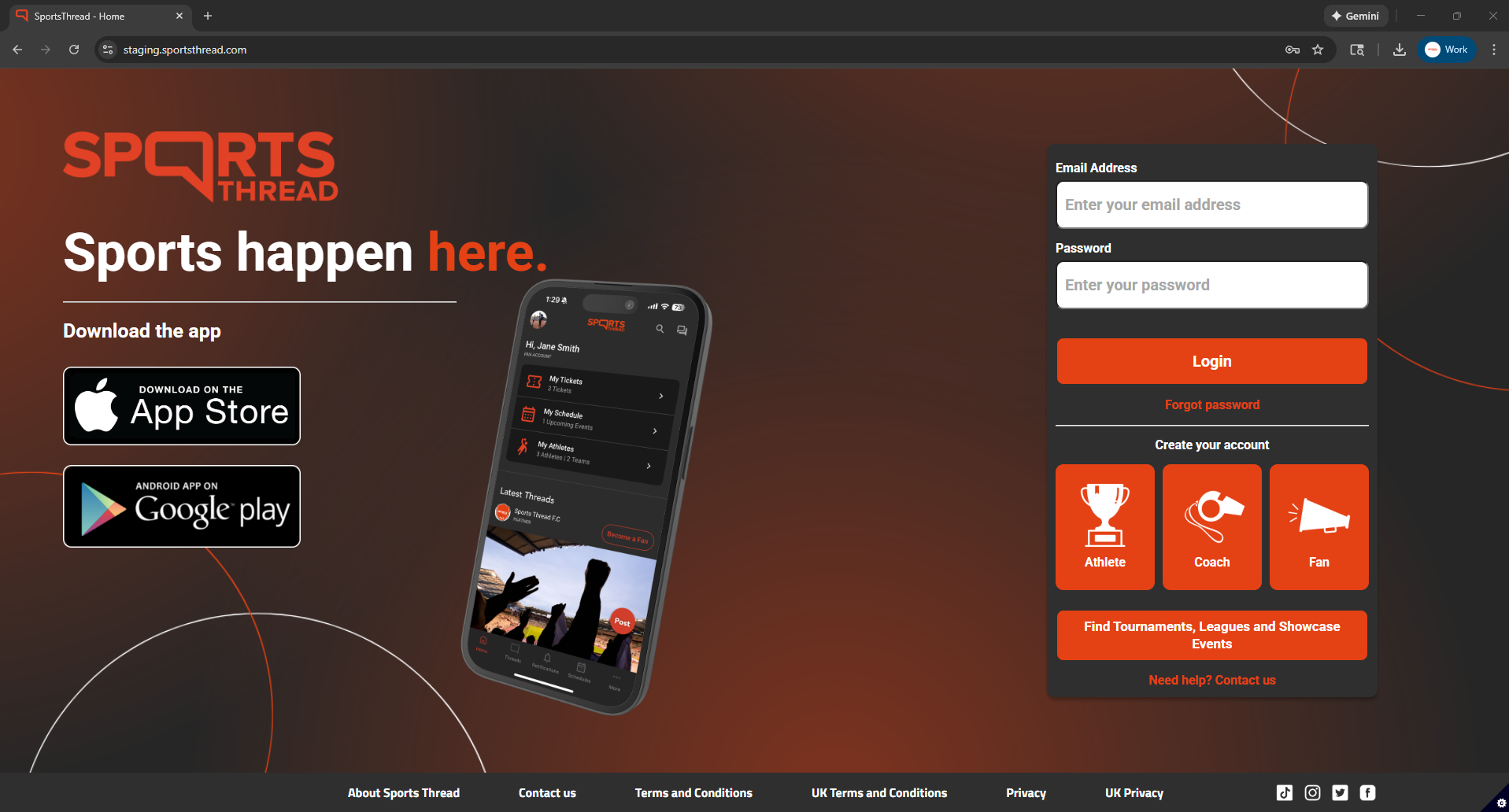
Login to your coach account at Sportsthread.com.
Step 2:
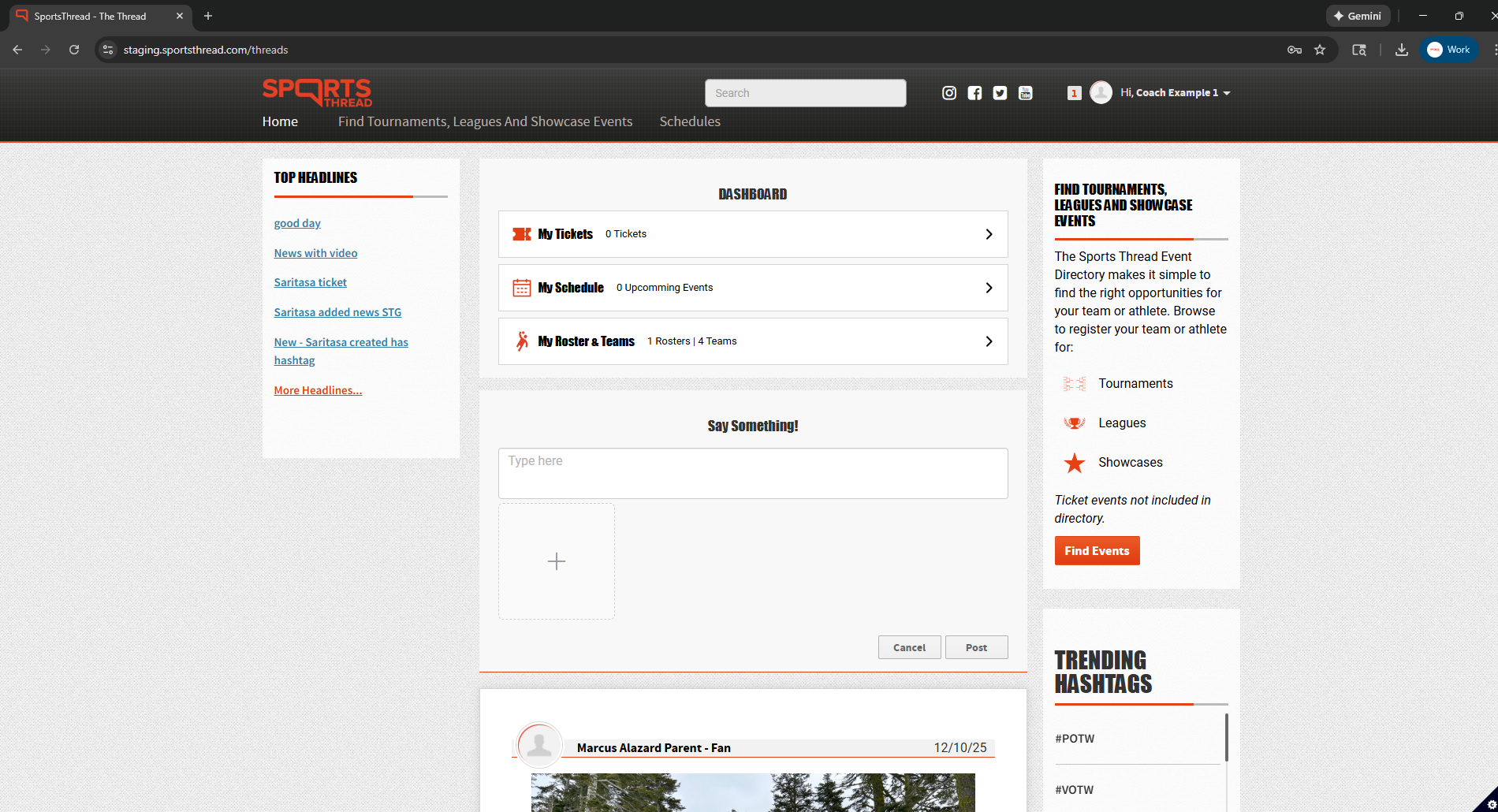
On the home page, click on “My Rosters and Teams”
Step 3:
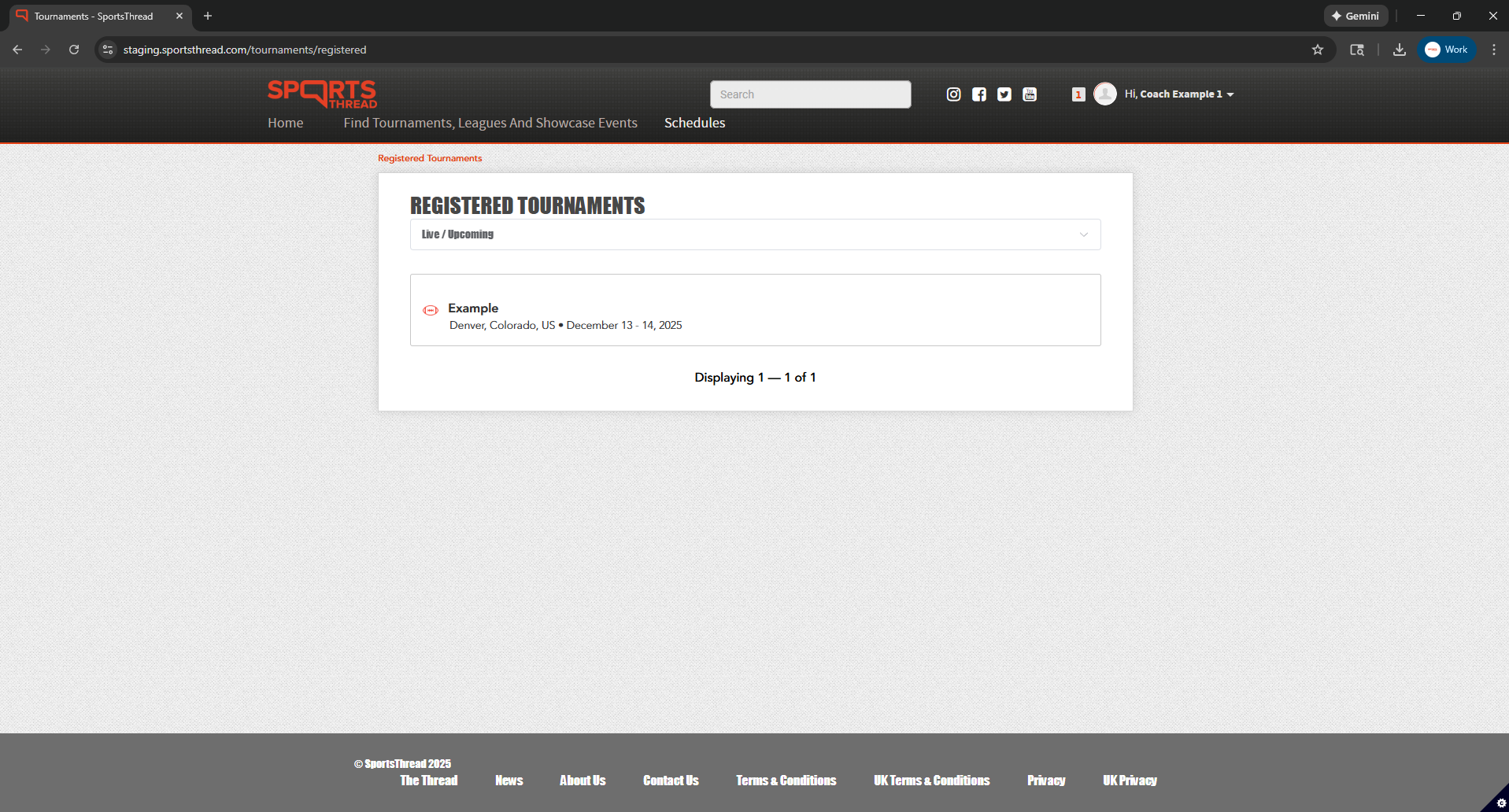
Under “Registered Tournaments” click the event that you registered your team for.
Step 4:
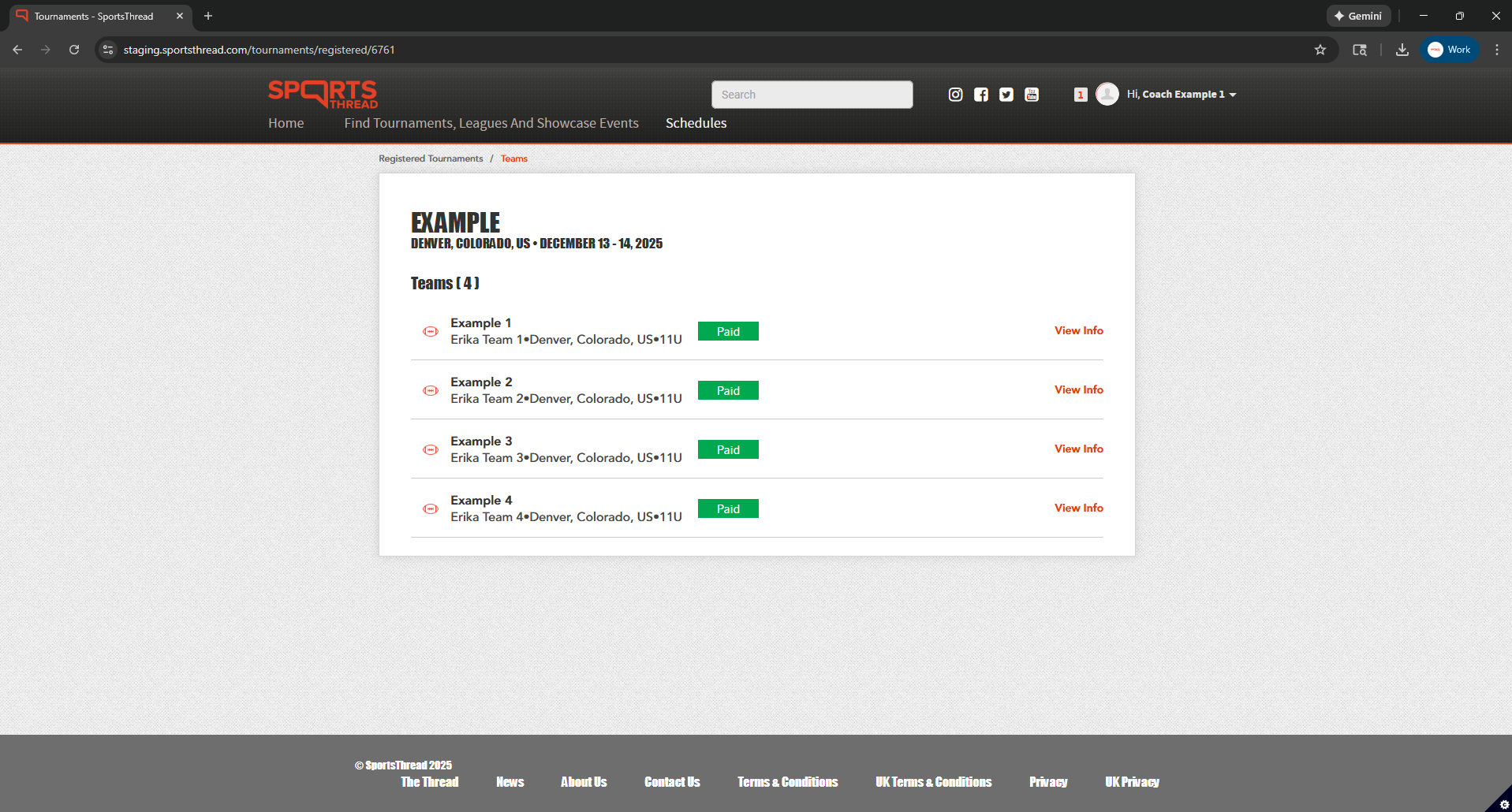
Click “View Info” next to the team that you want to invite an additional coach to.
Step 5:
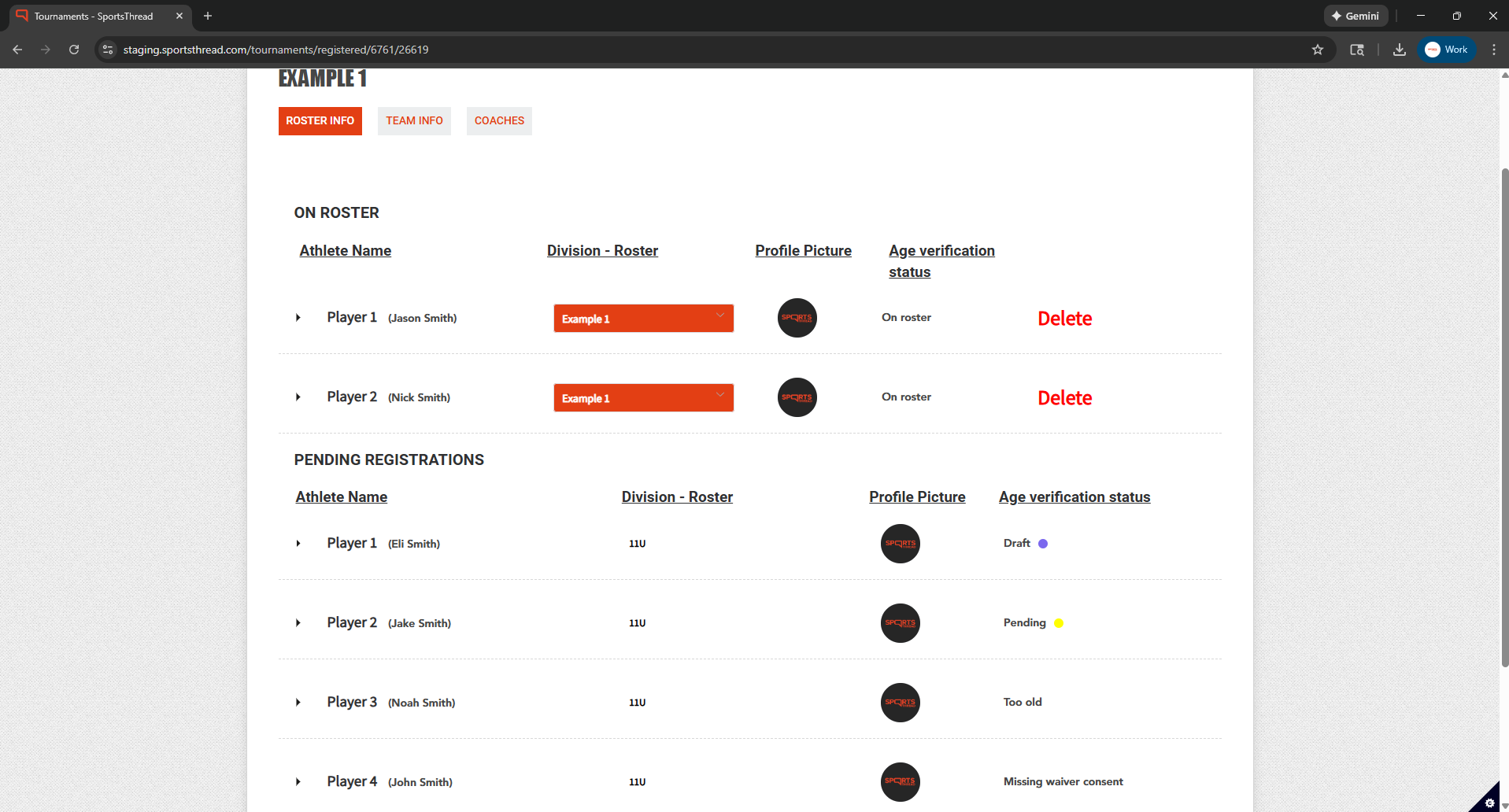
Click the “Coaches” button at the top to navigate to begin the invite process.
Step 6:
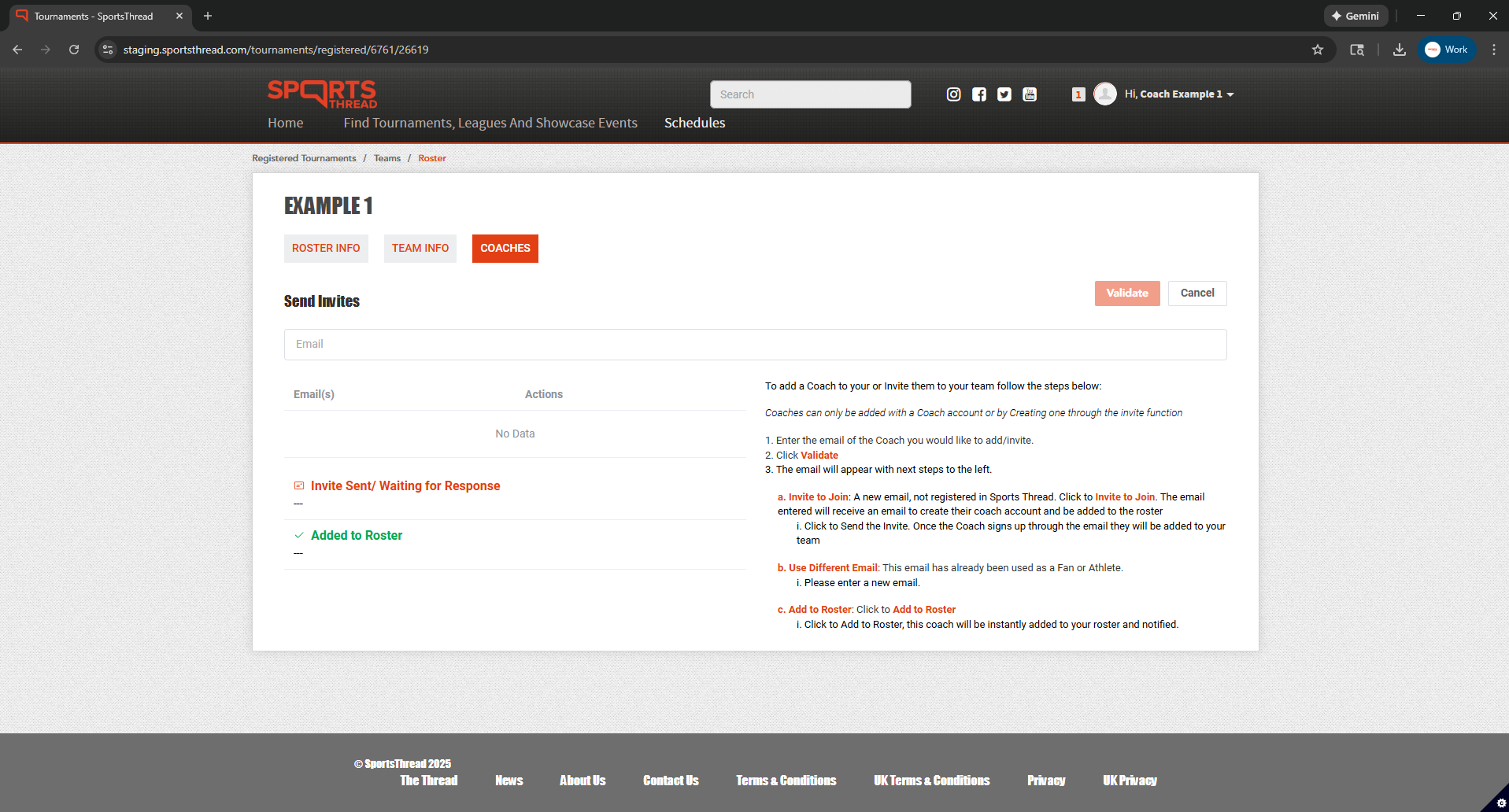
To invite a coach, paste their email into the Email textbox and click validate
Step 7:

On the right of the screen you will have in depth instructions on how to invite coaches of different types (new coach account/existing coach account)
Step 8:
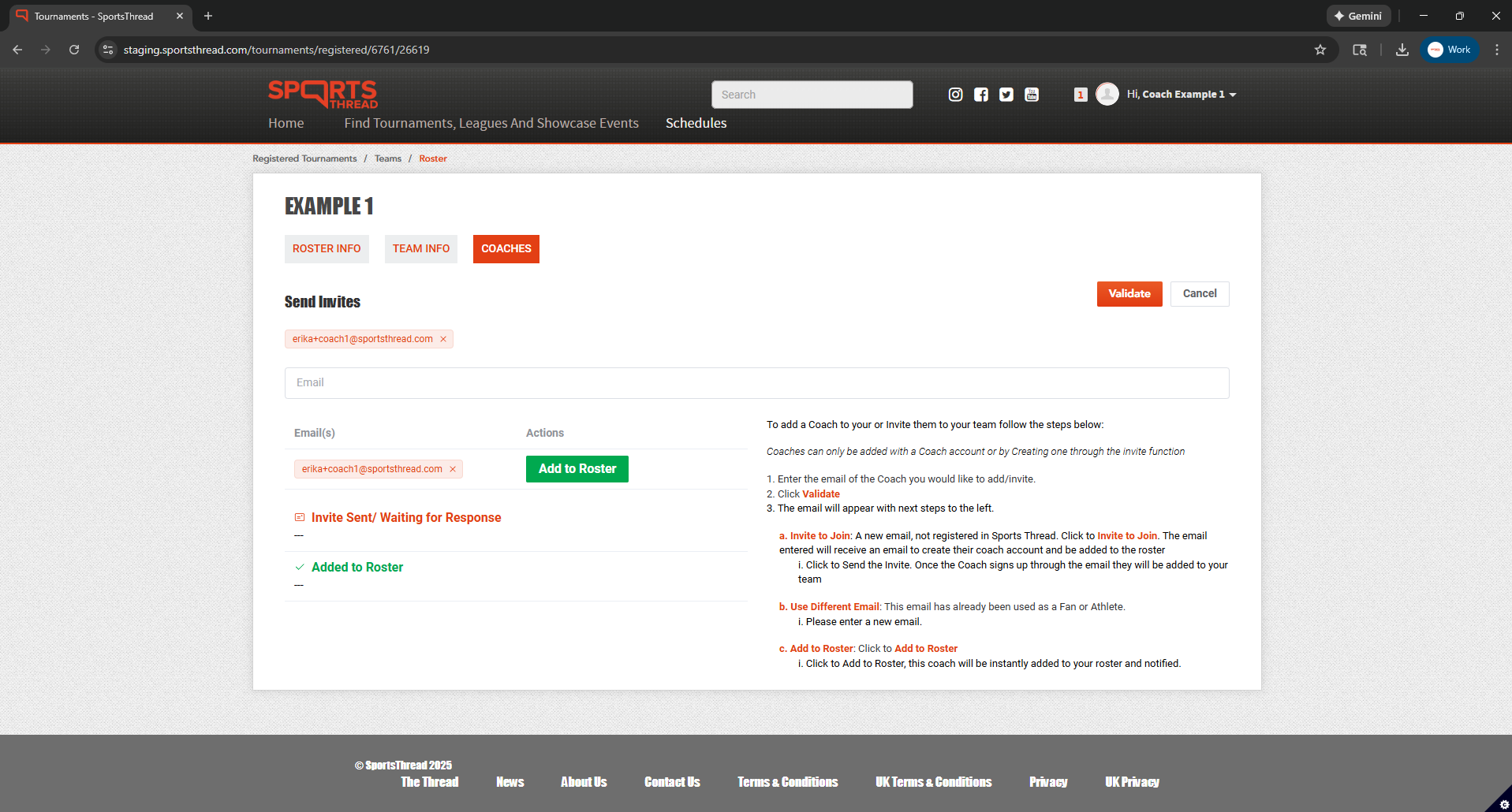
If the coach already has a coach account on Sports Thread a green “Add to Roster” button will appear.
Click that button and your coach will automatically be added to the roster.
Step 9:
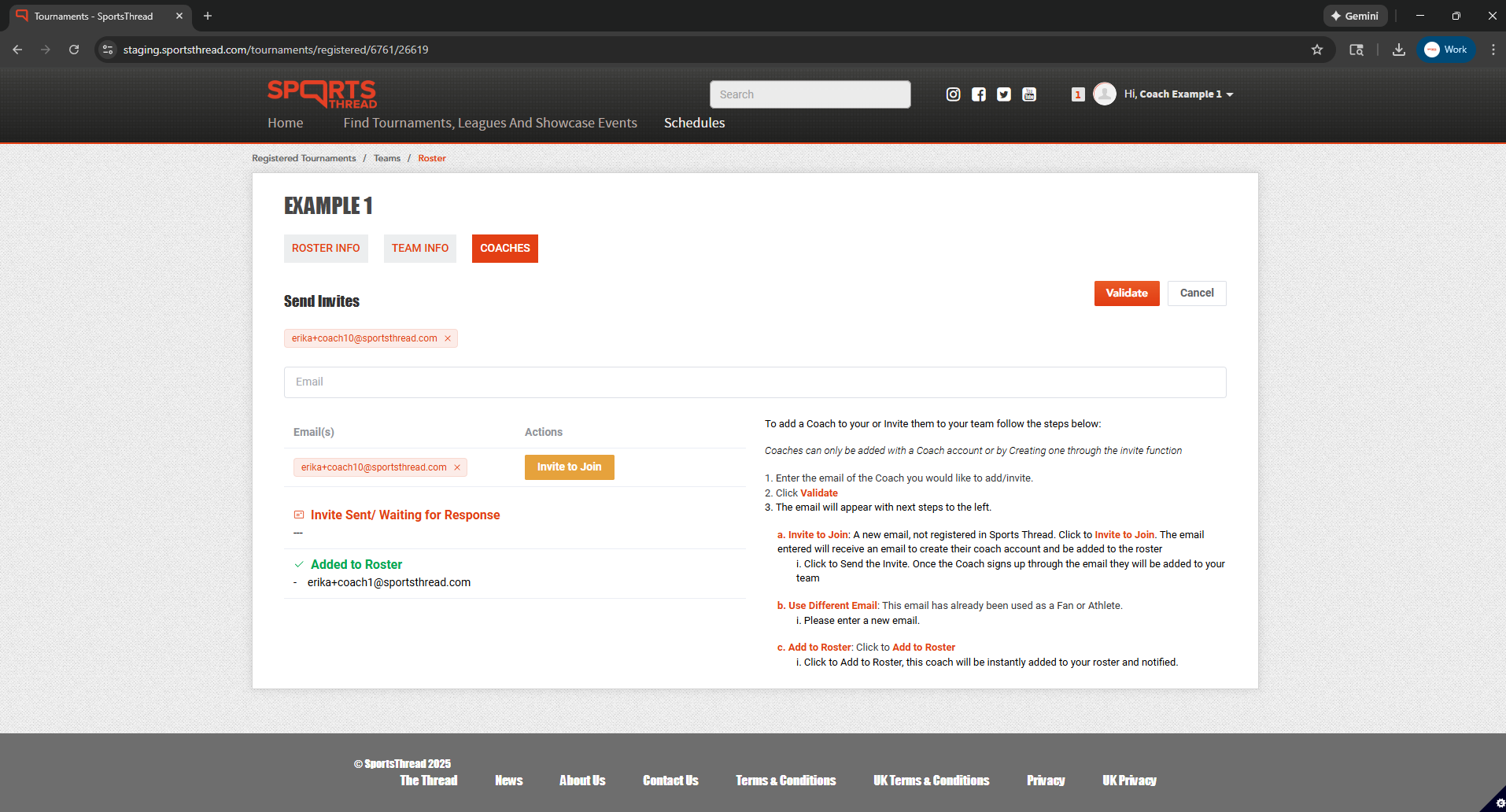
If the coach has not yet created a coach account on Sports Thread, a yellow “Invite to Join” button will appear.
Click that button to send a roster invitation to the coach.
Step 10:

After clicking “Invite to Join” your coach will receive the email above prompting them to click the link to create their coach account and join the roster.

